English
 Arabic
 French
 Spanish
 Portuguese
 Deutsch
 Turkish
 Dutch
 Italiano
 Russian
 Romaian
 Portuguese (Brazil)
 Greek
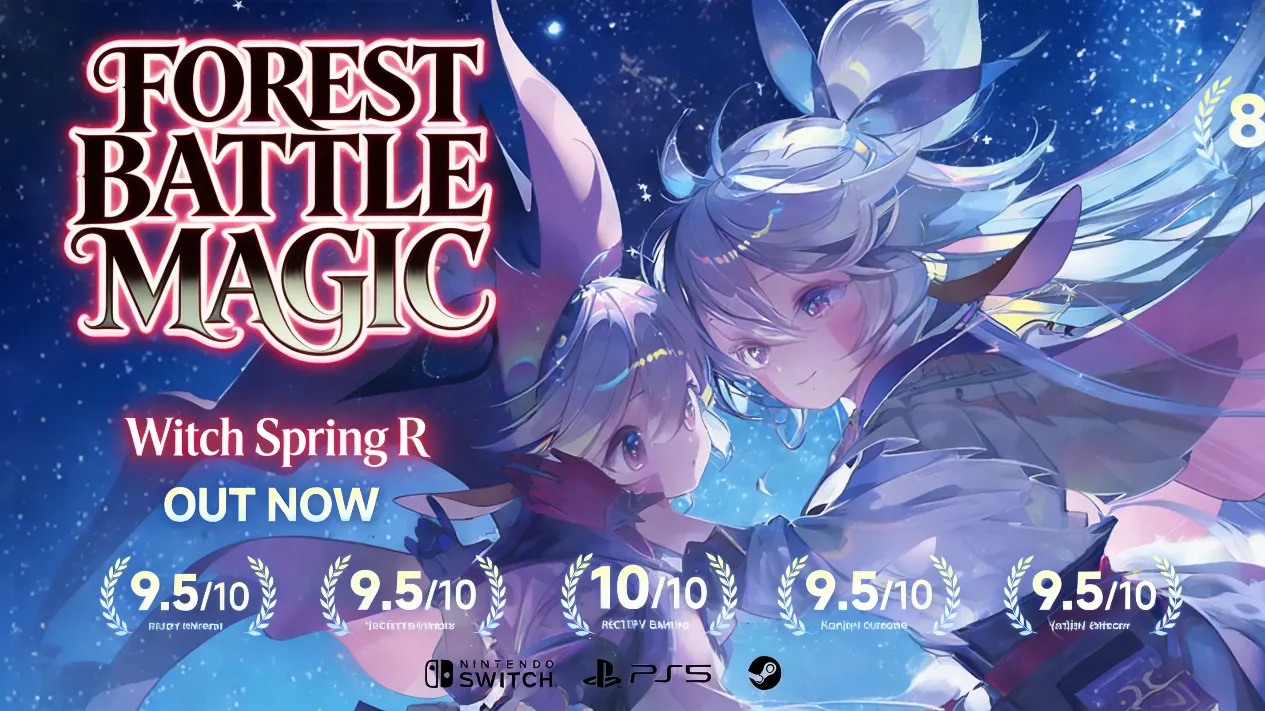
WitchSpring R may wear the Steam Deck Verified badge as of October 31, 2026, but that badge is a promise of compatibility, not a guarantee of smooth frames. According to hundreds of ProtonDB community reports, the default profile still drops well below 60 FPS when Pie unleashes full-screen boss magic or grinds through dense forest training loops. The most cited handheld annoyances are not open-world traversal—they are unnecessary FSR blur and unoptimized shadow settings. Chasing the max preset here is like using a lighthouse to light a birthday candle: technically bright, wildly inefficient. The better path is a locked native 800p 60 FPS setup with balanced battery life for both OLED and LCD Steam Deck models.
⚙️ System-Level Tuning Comes First
The first stop is the Steam Deck Quick Access Menu, where baseline performance gets locked before the game even launches. A 60 FPS frame limit and a 60Hz refresh rate are the foundation. OLED owners can stay at 60Hz instead of 90Hz; the lower refresh cuts power draw without sacrificing responsiveness for turn-based commands or real-time combat. A 10W TDP acts as the stability floor, eliminating most frame drops during boss magic effects. Players who accept rare ~55 FPS dips in dense zones can use 8W as an efficiency sweet spot. Manual GPU clock should be locked to 1100–1200 MHz to stop micro-stutter from clock fluctuation. For scaling, Linear is the better choice than FSR because the game runs natively at 800p; FSR here is like putting a frosted glass pane in front of a stained-glass window—it blurs the stylized UI for no meaningful gain.
| System Setting | Recommended | Why It Matters |
|---|---|---|
| Frame limit | 60 FPS | Keeps frame pacing consistent |
| Refresh rate | 60Hz | Lower power draw; OLED need not use 90Hz |
| TDP | 10W balanced / 8W saver | Stability floor vs. efficiency |
| GPU clock | 1100–1200 MHz | Reduces micro-stutter |
| Scaling | Linear | Avoids FSR blur at native 800p |
🎮 In-Game Settings That Actually Matter
Inside the game, clarity should come before max presets. Resolution belongs at 1280 x 800 native. VSync should be disabled in favor of the system frame limiter. TAA anti-aliasing pairs well with Ultra textures, keeping Pieberry’s character model sharp without excess VRAM pressure. Shadow Quality is the setting to watch: Medium is the practical ceiling. High and Ultra shadows are the single largest cause of frame spikes during combat. Effect Quality can stay at High to preserve the game’s signature magic visual flair. Terrain Draw Distance and Grass Density should sit at Medium to reduce CPU load in large forest areas. High Ambient Occlusion and Volumetric Fog/Water can remain enabled because they deliver large visual gains for minimal performance cost.
| In-Game Setting | Recommended | Notes |
|---|---|---|
| Resolution | 1280 x 800 native | Avoid upscaling blur |
| VSync | Off | Use Steam Deck frame limiter |
| Anti-Aliasing | TAA | Sharp character model |
| Textures | Ultra | No meaningful VRAM penalty |
| Shadows | Medium | Biggest combat spike source |
| Effects | High | Preserves magic visuals |
| Terrain Draw Distance | Medium | Lower CPU load |
| Grass Density | Medium | Helps forest zones |
| Ambient Occlusion | High | Cheap visual gain |
| Volumetric Fog/Water | On | Cheap visual gain |
🔋 The 10W Balanced Profile Is the Daily Driver
The 10W profile is the recommended daily setup. It holds a locked 60 FPS target across most zones and boss fights, with battery estimates of roughly 3.5 hours on LCD models and 4.5–5 hours on OLED models. That is the sweet spot for players who want consistency without turning the game into a blurry slideshow. The profile uses medium shadows and high effects/AO, so it keeps the visual identity intact while avoiding the worst power spikes.
| Profile | TDP | Core Adjustments | Estimated Battery Life |
|---|---|---|---|
| Balanced (Recommended) | 10W | Medium shadows, High effect/AO | 3.5h (LCD) / 4.5–5h (OLED) |
| Battery Saver | 8W | Low shadows, 50% brightness | 4h (LCD) / 5h+ (OLED) |
| Max Performance | 12W | All High/Ultra settings | 2.5–3h (all models) |
🪫 Battery Saver Without the Slideshow
Players who want extra playtime can drop TDP to 8W, the 2026 optimization sweet spot for Unity engine titles on Steam Deck. The trade-off is minor: rare dips to about 55 FPS in the most dense, effect-heavy zones. Shadow Quality should go to Low because shadows are the most power-hungry graphics setting in this build. Screen brightness at 50–60% is also important; the LCD panel’s high power draw means this single adjustment can add 20–30 minutes of playtime. The 8W profile is not a compromise for every session, but it is a useful fallback for long trips.
✅ Version Check, Missables, and October 2026 Notes
Running v1.105+ of WitchSpring R is critical for stable performance. The latest patch includes optimized shader caching that eliminates nearly all launch-era stutter and adds The Follower’s Fall epilogue content. The game remains fully Steam Deck Verified as of October 2026, but veterans warn players to check the developer’s official site for patch notes, DLC details, and lists of strict missables before starting a fresh run or NG+ playthrough. Pet carryover rules have been adjusted in recent updates, so a quick check is worth the time. Players building out a Steam Deck compatible library can pair the balanced 10W profile with the current build for consistent, stutter-free 60 FPS gameplay across all zones and boss fights.
🧭 Final Check
The Steam Deck’s 10W profile is less a magic wand and more a metronome—it will not make the game flashier, but it keeps the rhythm steady when the screen fills with spell effects. For WitchSpring R in 2026, the winning formula is native 800p, 60 FPS, Linear scaling, medium shadows, and a 10W TDP. The max preset is not the flex; the locked frame time is.
If the locked 10W profile has convinced you to start a fresh run—or to chase the epilogue content on a new save—the next practical step is securing the game itself without overpaying. LootBar is a trusted game top-up platform for in-game currency, gift cards and game keys, and its comparison pages are a straightforward way to check current pricing before you commit to a purchase.
For players who want their budget to stay as disciplined as their frame time, it is worth a quick look at the Buy WitchSpring R PC key discount listing on LootBar before checkout, especially if you are picking up the game for the first time or adding it to a growing Steam Deck library.
Once your settings are dialed in, the remaining variables are timing and source. LootBar is a trusted game top-up platform for in-game currency, gift cards and game keys, which makes it a practical stop for players comparing options before a purchase. For official patch notes, DLC details, and developer updates, keep the WitchSpring R Developer Official Site handy so your decisions stay aligned with the current build.