English
 Arabic
 French
 Spanish
 Portuguese
 Deutsch
 Turkish
 Dutch
 Italiano
 Russian
 Romaian
 Portuguese (Brazil)
 Greek
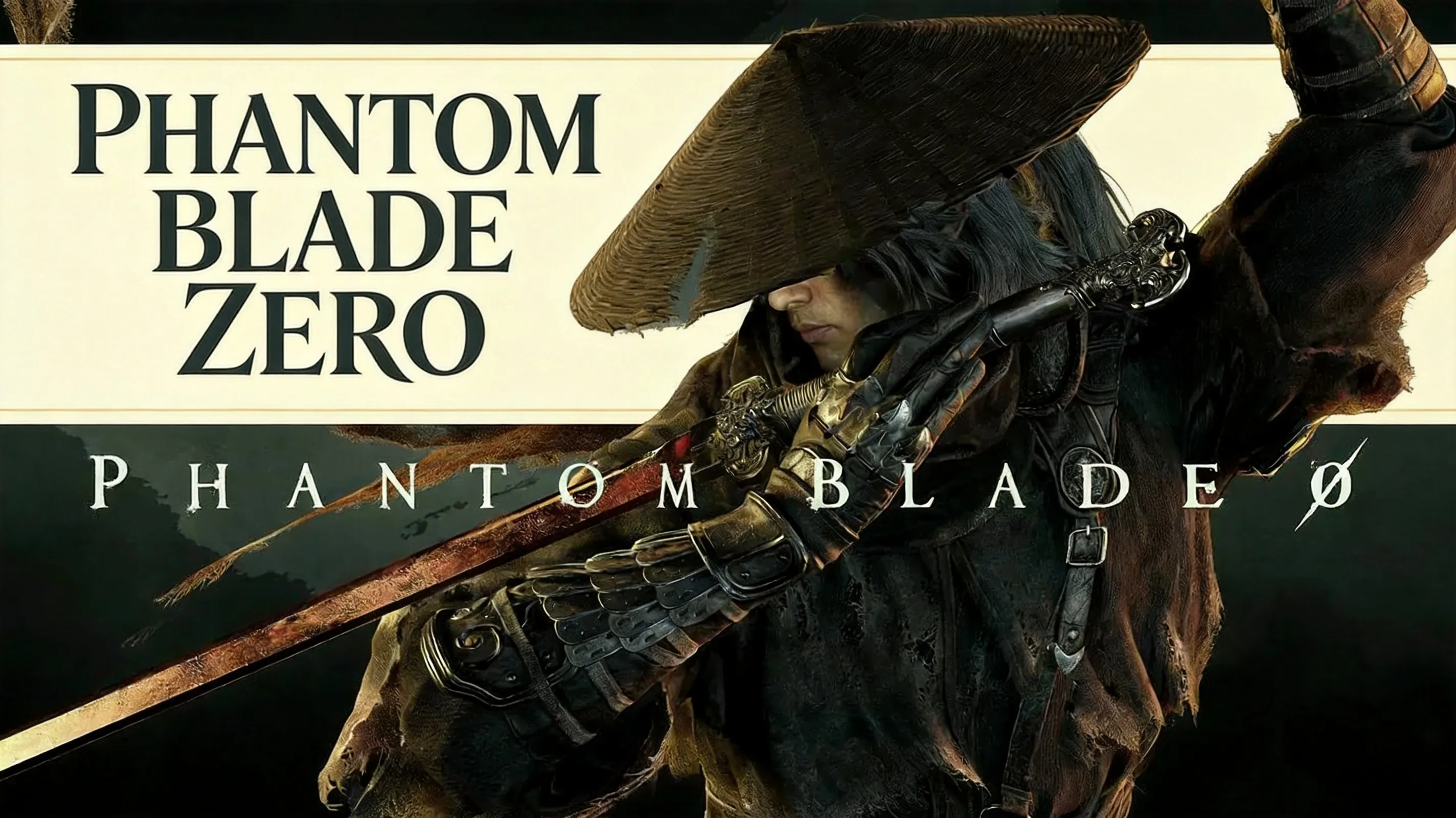
Phantom Blade Zero’s launch build lives or dies on its tight 0.1–0.2s parry window: miss the Blue-Parry tell at sub-60 FPS and your Sha-Chi bleeds out fast, while a mis-timed panic roll will get you smacked by Red-Dodge unblockable attacks. Day 4’s 1.0.2 patch solidified community consensus: Preset 1 keeps Parry on L1 and Ghoststep on R1 so your right thumb never leaves the camera stick, but PC players still need a Heavy Attack remap, as the default F bind feels clunky during high-speed combo strings.
Performance Foundation: Lock 60 FPS Before Touching Keybinds
Stable 60 FPS is non-negotiable for consistent parries, as the narrow 0.1–0.2s window leaves zero room for frame drops. PS5 users must enable Performance Mode for steady frame pacing. PC users should disable Ray Tracing and High-Quality Hair, and set Super Resolution Output Scale to 100% instead of Auto to cut input latency. If input lag persists, force NVIDIA Low Latency Mode to Ultra or AMD Anti-Lag to On in your GPU control panel. Always confirm you are running build 1.0.2 before copying any control layouts, as launch-week tuning can shift bind functionality.
Phantom Blade Zero Controller Settings: Best Button Layouts
Two presets dominate launch-week community play, per below:
| Action | Preset 1 (Camera-First) | Preset 3 (Souls-Like) |
|---|---|---|
| Parry/Block | L1/LB | L1/LB |
| Ghoststep/Dodge | R1/RB | Circle/B |
| Light Attack | Square/X | R1/RB |
| Heavy Attack | Triangle/Y | R2/RT |
| Phantom Edge | R2/RT | Square/X |
| Power Surge | L2/LT | Triangle/Y |
Preset 1 is the high-speed combat pick, as keeping defense and evasion on shoulder buttons lets you maintain camera tracking during fast boss swaps. Preset 3 works for Souls-like muscle memory, but moving Ghoststep off the shoulder reduces camera control in chaotic group fights. Bind D-pad Left for weapon switching; the community treats it as a Sha-Chi reset button during long parry strings.
PC Keybinds and Sensitivity Tuning for Fast Combos
Pro PC players widely use the following remap to fix the clunky default F Heavy Attack bind:
-
Light Attack: Left Mouse Button
-
Heavy Attack: Side Mouse Button 1
-
Block/Parry: Right Mouse Button (hold to block, tap to parry)
-
Dodge/Sprint: Left Shift
-
Phantom Edge: Left Ctrl or Side Mouse Button 2
-
Power Surge: Q
-
Weapon Switch: 1/2
Set horizontal/vertical sensitivity to 60–65, controller deadzone to 0.05–0.10, Motion Blur to OFF, Camera Shake to 0–20, and enable Auto-Switch Target on Kill for group fights. These binds preserve reaction time: RMB parry is far more intuitive for fast Blue-Parry tells, and the low deadzone lets veterans snap 180s when enemies dash behind.
Advanced Combat Optimization: Safe Parry, Sha-Chi, Ghoststep
Use the Safe Parry technique to avoid mis-timing punishment: hold L1/LB to block, then tap it again right before an attack lands. A slightly early tap will still block the hit, spending Sha-Chi instead of health. Weapon switching via D-pad Left instantly refills a portion of your Sha-Chi bar, so rotate weapons mid-fight to stay aggressive instead of backing off to recharge. Prioritize Ghoststep (R1 + direction) over heavy rolls for immediate counter-attacks; staying in melee range is the core Hellwalker skill check for endgame content.
Launch-Day Checklist and Commercial Tracking
Before copying any layout, confirm the launch manual and 1.0.2 notes through Phantom Blade Zero Official Website; settings guides age fast in week-one patches. Once the build feels locked, use PriceRadar Phantom Blade Zero tracker to compare Standard and Deluxe editions and platform availability without guesswork. Run a final pre-play check: confirm stable 60 FPS, shoulder-button defense binds, motion blur disabled, and Sha-Chi reset bound to D-pad Left (or 1/2 on PC), then adjust sensitivity to your personal preference before jumping into missions.